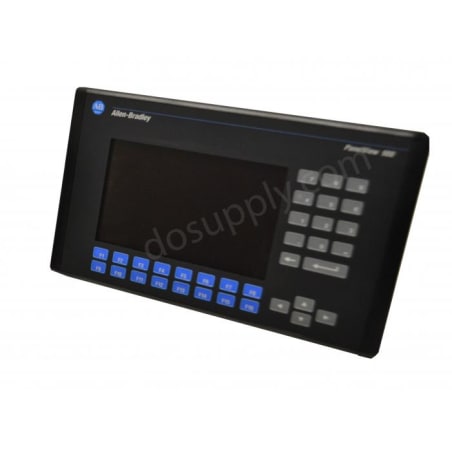
2711-T9C10L1X
Operating on 24 VDC, this operator terminal is capable of functioning effectively within an ambient temperature range of 0 to 50 °C and can be stored between -25 and 70 °C. It has a memory capacity of
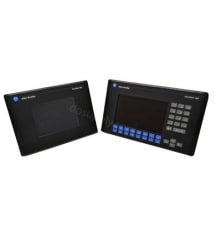
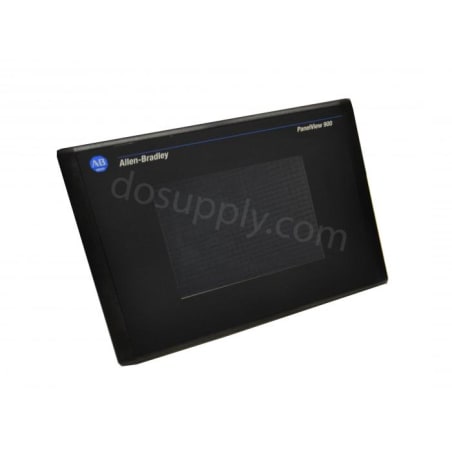
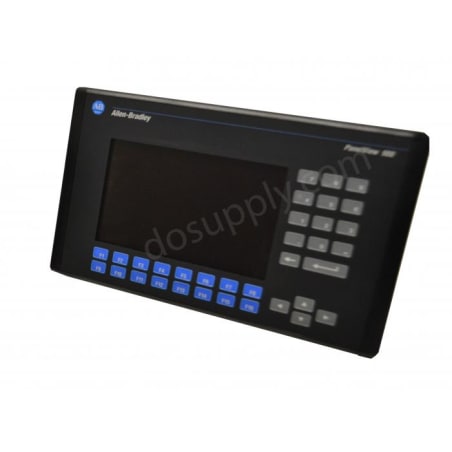
The Allen Bradley PanelView Standard 900 Graphic Terminals are engineered to suit your needs with excellent graphics capabilities that allow the user interface with their machine. The Terminal features a 9 in. flat-panel display in monochrome, greyscale, or color. These terminals support operator input, through touchscreen, keypad or both touchscreen and keypad. In addition, this HMI comes with a variety of communication port options, adapting to the specific needs of the user.
Browse available units in our catalog of Panelview 900.
Operating on 24 VDC, this operator terminal is capable of functioning effectively within an ambient temperature range of 0 to 50 °C and can be stored between -25 and 70 °C. It has a memory capacity of
This operator terminal operates on 24 VDC power input, with a maximum power consumption of 50 W. The memory capacity is set at 1008 KB, supporting operational data management. It is capable of functio
This operator terminal includes touchscreen capabilities with a high-resolution display size of 171 x 130 mm and a long-lasting LED backlight estimated at 100,000 hours. It supports various communicat
This operator terminal is built with a durable design that supports operating temperatures from 0 to 50 °C and storage temperatures reaching -25 to 70 °C. The device consumes around 70 watts and featu
This operator terminal has a display size of 9 inches and features a non-replaceable backlight. It supports external memory and is designed to facilitate two-way data exchange. The operating temperatu
The 2711-K9C3L1X model is part of the Panelview 900 series and functions as a human-machine interface terminal. Designed to operate on 24 VDC, it supports a voltage range of 18 to 32 VDC. This termina
The 2711-T9C9L1X is part of the PanelView 900 series and functions as an operator terminal with a 9-inch color display. It features a touchscreen for intuitive user interaction and operates on a 24 VD
This operator terminal offers support for DH+ networks, which enhances its integration abilities within automation systems. It is equipped with non-replaceable backlighting and is intended for panel m
The operator interface is equipped with a keypad but lacks touchscreen functionality. It requires a DC power input between 18 and 30 volts. The device offers application memory of 240K for screen stor
The 2711-K9A9L1X operator terminal operates with an input voltage of 24 VDC and supports communications through RS-232 (DH-485) and RS-232 printer connections. This terminal is rated for an operating
The Panelview 900 series is a series of control interface terminals featuring the monochrome and color terminals. The Panelview 900 terminals feature the NEMA Type 12/13,4X enclosures, and they are ideal for indoor use only. The Panelview 900 units are designed with status indicators that are attached to the enclosure. These allow for the monitoring of the Panelview 900 communication status, and they are resourceful in showing the fault statuses. The communication LED turns green to show active communication, while the fault LED turns red to shows that there is a fault, and that troubleshooting is required.
The Panelview 900 terminals feature the keypad and touchscreen input types. The Panelview 900 terminals’ dimensions are 249 millimeters in height, 406 millimeters in width, and 112 millimeters in depth. The PV900M units under the Panelview 900 series feature AC gas plasma screen with pixel resolutions of 640 x 400. The PV900M units feature 384 touch cells with touch cell sizes of 26 x 25 pixels. This series features active-matrix thin-film resistors with cold cathode fluorescent backlights. The Panelview 900 terminals feature an operating temperature range of 0 to 55 degrees Celsius while the storage temperature range is -25 to 70 degrees Celsius. The relative humidity range is 5 to 95%, non-condensing. When installing the Panelview 900 terminals, ensure that the electrical power has been disconnected from the panels. In addition, make sure that the area around the panel is cut out clearly and ensure that metal debris does not enter any of the components installed on the panel. Note that if the installation guidelines are not adhered to, this might result in personal injury or component damage.
If your PanelView 900 fails to startup properly, always check the power supply first. Ensure the terminal is receiving the correct voltage and that the wiring and connections to the power source are valid. In addition, you should also ensure the DC power positive and negative are attached to the proper terminals.
The status indicators are located on the back of your PanelView 900 terminal. The COMM indicator is green and reflects communication. The FAULT indicator is red and reflects hardware faults. Upon startup, the fault indicator should be off and the comm indicator on. If the fault indicator flashes a few times at startup, this is not a concern. However, if both indicators are off you should check the power cable. See the table below to interpret the terminal's indicator status:
| Indicator | Status | Meaning |
| Comm | On | Normal Operation |
| Off |
Fault Present- Ensure controller is in run mode. Check baud settings of controller/terminal. Check for proper controller connections. |
|
| Blinking | Failed to establish communication | |
| Fault | On |
Fault Present - Restart terminal. If the error persists, the terminal requires servicing. Click here for information about DO Supply's repair service. |
| Off | Normal Operation | |
| Blinking | No applications loaded/application is corrupt. Reload the application. |
| Indicator | Status | Meaning |
| Comm | On | Normal operation |
| Off | Hardware failure | |
| Blinking | Failed to establish communication | |
| Fault | On | Hardware failure. |
| Off | Normal operation | |
| Blinking | Application not loaded/application is corrupt |
| Indicator | Status | Meaning |
| Comm | On | Normal operation |
| Off | Communication non-functional | |
| Blinking | Failed to establish communication, PLC may be in program mode | |
| Fault | On |
Fault Present - Check baud rate and rack settings. Ensure proper connections from terminal to controller. Verify remote I/O is enabled. |
| Off | Normal Operation | |
| Blinking | Application not loaded/application is corrupt |
| Issue | Possible Cause | Action |
| Failed Application Download (Initial Attempt) | Disconnected Communication Cable | Check cable type and connection |
| Improper Computer COM Port Selection | Ensure you have the correct COM port number in PanelBuilder32 or WinPFT software | |
| Communication Settings/Rate Incorrect | Ensure computer and terminal share the same communication settings | |
| Failed Application Download (Subsequent Attempts) | Communication Settings/Rate Incorrect | Ensure computer and terminal share the same communication settings. Adjust settings in the Communication Setup screen |
| Application File Name Appears as ******* | Invalid Application | Redownload application |
| Unusable Application Due to Error | Download new application | |
| Failed Application Transfer from Memory Card | Memory card incorrectly installed | Reinstall, verify its installed correctly |
| Application to Large for Terminal Memory | Reduce application size | |
| Incorrect Data Checksum | Ensure memory card is properly seated. It is possible the application may be corrupt | |
| File Format Invalid | Verify file format (.PVA) | |
| Failed Application Transfer to Memory Card | Memory card incorrectly installed | Reinstall, verify its installed correctly |
| Memory Card May be Wire Protected | Change memory card protection switch | |
| Another File on the Memory Card | Erase/reformat card | |
| Application to Large | Reduce application size, erase/reformat card | |
| Memory Card Format Invalid | Replace/reformat card | |
| Incorrect Data Checksum | Ensure card is installed correctly | |
| Application Does Not Exist | Ensure application exists |
Here at DO Supply, we offer repair services for your Allen-Bradley products, such as the Allen-Bradley PanelView 900. For more information or to request a quote, click here.