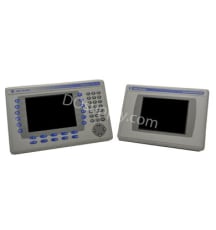
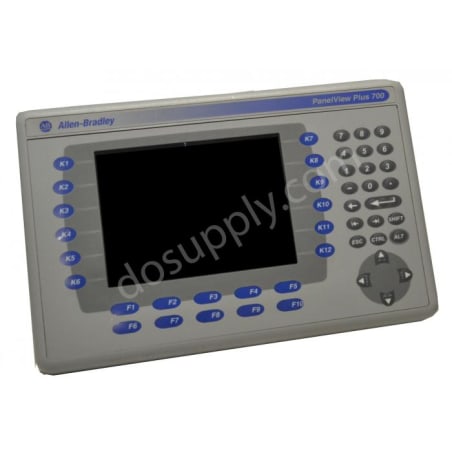
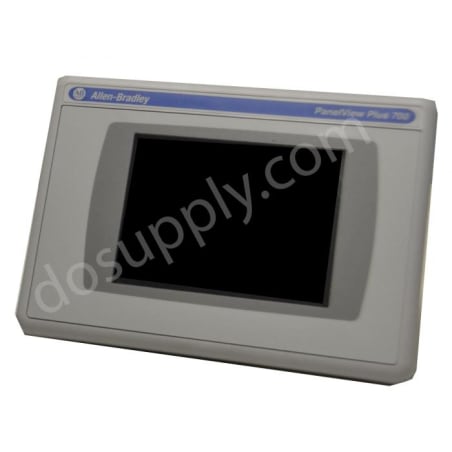
PanelView Plus 700 Incorrect Start-Up
If the PanelView Plus 700 terminal is not starting up correctly always check for adequate power first. Inadequate power can cause a variety of unpredictable behavior. Simply verify the terminal's power requirement in the specifications table. It is also good practice to determine whether there have been any changes since the last startup. Determine what these are to see if they can be reversed.
Battery voltage, as well as the display temperature, are indicative of other potential issues as well. Check the battery voltage and display temperature from the PanelView Plus 700 terminal desktop or from the FactoyTalk View ME station configuration mode. If the voltage is below 2.75 volts DC, consider replacing the battery. Obstructed airflow in the chassis can cause the CPU and/or display to overheat. If the CPU temperature is above 95 degrees Celsius or the display temperature is above 55 degrees Celsius, try to moderate the ambient temperatures.
If you continue have start-up issues, observe the splash screen for state messages and for the status or error codes.
Start-Up Messages
| Message |
No. |
Meaning |
| RAM Test |
1 |
Tests RAM memory |
| Image Search |
2 |
Checks for new operating system firmware upgrade on external CompactFlash card and serial port |
| Registry Search |
2.5 |
Locates and loads most recent registry while maintaining multiple copies of the registry
|
| Internal CF |
23 |
Programs recently downloaded operating system firmware into internal flash memory |
| CRC Check |
24 |
Checks operating system firmware integrity |
| Starting System |
28 |
Launches the operating system |
| System Check ### |
29 |
Checks internal file system integrity |
| System Check |
29.1 |
Contact tech support. The internal file system integrity check has been disabled |
| Watchdog Test |
30 |
Verifies system integrity by testing watchdog circuitry |
| Stuck Key |
31 |
Checks integrity of the function key hardware |
| Stuck Touch |
31.5 |
Checks integrity of touch screen hardware |
| Battery Test |
32 |
Checks integrity of battery hardware |
| Video Initialized |
37 |
Initializes and configures graphic video system |
| External CF |
50 |
Transfers new operating system firmware upgrade to the terminal from an external CompactFlash card |
Start-Up Error Messages
| Message |
Error No. |
Meaning |
Action |
| RAM Test |
1 |
Failed RAM Test |
Reset the terminal. If the error continues, reset SO-DIMM RAM module. If this does not fix the issue, replace the logic module |
| Internal CF |
23 |
Error programming the new OS firmware to internal CompactFlash. |
Reload firmware. If the error continues, replace the internal CompactFlash. If this does not fix the issue, replace the logic module |
| CRC Check |
24 |
Checksum of the OS firmware failed. |
Reload firmware. If the error continues, replace the internal CompactFlash. If this does not fix the issue, replace the logic module |
| Watchdog Test |
30 |
Watchdog test failure |
Reload firmware. If this does not fix the issue, replace the logic module |
| Stuck Key |
31 |
Function key failure |
Verify nothing is pressing any keys. Reset the terminal (do not use key presses). If this does not fix the issue, replace the display module |
| Stuck Touch |
31.5 |
Touchscreen failure |
Verify nothing is pressing the touch screen. Reset the terminal (do not use the touch screen). If this does not fix the issue, replace the display module |
| Battery Test |
32 |
Failed battery |
Replace the battery. If this does not resolve the issue, replace the logic module |
| NVRAM Access |
33.5 |
Nonvolatile memory failure |
Upgrade the system firmware |
| EXE Check |
40 |
System OS firmware is missing or corrupt. |
Reload firmware. If the error continues, replace the internal CompactFlash. If this does not fix the issue, replace the logic module |
| External CF |
50 |
Error loading the OS firmware from the external CompactFlash card. |
Reload firmware. If the error continues, replace the internal CompactFlash. If this does not fix the issue, replace the logic module |
PanelView Plus 700 Status Indicators
Status indicators are located on the back of your PanelView 700 terminal. The COMM indicator is green and reflects communication. The FAULT indicator is red and reflects hardware faults. Upon startup, the fault indicator should be off and the comm indicator on. If the fault indicator flashes a few times at startup, this is not a concern. However, if both indicators are off you should check the power cable. See the table below to interpret the terminal's indicator status:
Startup Issues - Indicator Status
| Fault Indicator (RED) |
Comm Indicator (GREEN) |
Meaning and Action |
| Possibly Recoverable Error |
| Blinking |
On |
Windows CE Operating System failed or missing. Reload firmware. |
| Off |
Most recent firmware download failure. Reload firmware. |
| Blinking |
EBC boot loader firmware missing/failed. Reload firmware. |
| Fatal Error |
| On |
Blinking |
Fatal display hardware error. Replace display module. |
| Off |
Fatal hardware error. Replace logic module. |
PanelView Plus 700 Terminal Component Anomalies
Display Issue
| Issue |
Action |
| Dim or Unreadable Display |
Check display settings -
When in configuration mode, select Terminal Setting>Display>Display Intensity
|
| Backlight Unexpectedly Turning Off or Dimming |
Check screen saver settings -
When in configuration mode, select Terminal Settings>Display>Screen Saver
|
Touch Screen Issues
| Issue |
Action |
| Touch Screen Operating Incorrectly/Inaccurate Input and Dragging |
Calibrate Your Touch Screen -
When in configuration mode, select Terminal Settings> Touch Screen>Calibration
|
| Screen Cursor Not Visible |
Verify the Cursor is Enabled -
When in configuration mode, select Terminal Settings> Input Devices> Touch Screen > Cursor
|
| Touch Screen Not Accepting Touch Input |
Attach USB Mouse:
Mouse works but touch screen does not: Touch driver or screen is nonfunctional
Neither mouse nor touch screen working: Application issue
|
If the PanelView Plus 700 display lacks a touch screen, you may not have a touch screen display. Check the label on the terminal and the part number of the unit to verify.
Please Note: When calibrating your touch screen, the process requires four (4) screen touches. If the touches are not satisfactory, more will be requested until calibration is successful. If the touch screen does not calibrate or continues to malfunction replace the PanelView Plus 700 display module.
Mouse Issues
| Issue |
Action |
| Mouse Operating Incorrectly |
Reattach USB mouse, restart terminal |
| Cursor Not Visible/Mouse Settings Require Adjustment |
Verify the Cursor is Enabled -
When in configuration mode, select Terminal Settings>Display>Cursor
Check Mouse Settings -
When in configuration mode, select Terminal Settings>Input Devices>Mouse
|
| Mouse is Composite Device (Keyboard and Mouse) |
Replace with standalone mouse |
| USB Mouse Non-Operational |
Replace the USB mouse. Current mouse may be noncompliant |
Keyboard Issues
| Issue |
Action |
| Keyboard Operating Incorrectly |
Reattach the USB keyboard, restart the terminal |
| Keyboard Rejecting Key Input |
Check Keypad Input -
If keypad works either the keyboard driver or keyboard stopped working. If neither the keypad nor the keyboard work, an application failure is likely
|
| Keyboard is USB Composite Keyboard and Mouse |
Simply use a standalone USB keyboard |
| USB Keyboard is Non-Operational |
Replace the USB keyboard. Current keyboard may be noncompliant |
| Keyboard Not Enabled |
Check Alt-Ctrl Keys
When in configuration mode, select Terminal Settings>Input Devices>Keyboard
|
Keypad Issues
| Issue |
Action |
| Keypad Not Accepting Input |
Check Keyboard Input-
If the keyboard works either the keypad driver or keypad stopped working. If neither the keypad nor the keyboard work, an application failure is likely
|
| Hold-Off Delay too Long/Multiple Key Presses Inhibited by Multi-Key Lockout |
Check Keypad Settings-
When in configuration mode, select Terminal Settings>Input Devices>Keypad
Note: Home, End, Up and Down keys do not work when single or multi-key lockout is enabled.
|
Isolating PanelView Plus 700 Ethernet Issues
Indicator Status and Cable Connection/ Quality
Examine the status indicators at the Ethernet connector. If the indicator is green, a communication link is on. If the indicator is an amber color and flashing, this indicates data activity. You should always ensure there is a good connection to the hub and uplink ports. Poor cable quality and crimping can inhibit the ethernet connection.
Ethernet Controller IP Address/ Conflicting IP Address
When in configuration mode select Terminal Settings> Networks and Communications > Network Connections > Network Adaptors. Check the DHCP. If this is enabled the device will attempt to connect to a valid IP address within seconds of startup. If it fails to acquire and IP address, the TCP/IP protocol will assign 169.254.xxx.xxx. If the DHCP is not enabled, verify the IP address specified does not conflict with another device on the network.
Verify Device Name
Other devices must not share the same hostname if they are on the same network. When in configuration mode, select Terminal Settings> Communications and Networks> Network Connections> Device Name.
Peer or Server Settings
The Ethernet issue may be caused by the other side of the connection.
Repair Your PanelView Plus 700
Here at DO Supply, we offer repair services for your Allen-Bradley products, such as the Allen-Bradley PanelView Plus 700. Click here for more information or to request a quote.