
Allen Bradley
2711P-B7C22D9PX
From $3,150
Available
The Allen Bradley Panelview Plus 7 is an Operator Interface Terminal which has a display size ranging from 4 inches to 10 inches. They use WIndows CE 6.0 and can be programmed with Factory Talk View Machine Edition. These terminals are capable of monitoring an application remotely using a VNC connection. This module includes 512 MB of Ram and uses an SD card to copy and restore the operator interface.
Browse available units in our catalog of Panelview Plus 7.
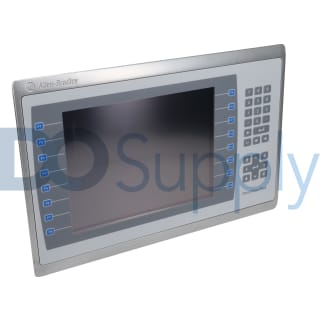
This PanelView Plus 7 model supports a display area of 196 x 118 mm (7.7 x 4.6 in.). Memory capacity includes 512 MB RAM and 512 MB of nonvolatile storage, allowing approximately 80 MB for user applic

The terminal showcases a resolution of 640 x 480 VGA with an 18-bit color depth, providing clear visuals on a large display area of 304 x 228 mm (12.0 x 9.0 in.). With durable analog resistive touch t

This terminal has a display area measuring 376 x 301 mm (14.8 x 11.9 in.) and supports touch input through an analog resistive system. It is built with a system memory of 512 MB RAM and a total of 512

This logic module operates with a 24V DC power supply, consuming 40W. The 2711P-RP1DX features a display resolution of 1280 x 800 pixels and an impressive memory capacity of 4 GB. It is also rated IP5
Offering a resolution of 800 x 600 VGA, this terminal operates on 24V DC power and features 512 MB of RAM. It includes two USB ports for additional connectivity and is designed to operate in temperatu
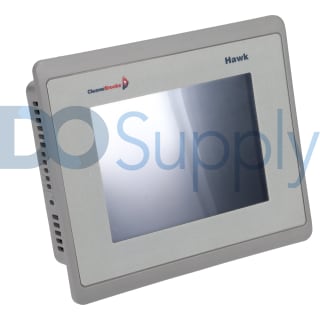
With an aspect ratio of 4:3, this operator interface features a maximum power consumption of 35 watts and operates on a 24 volts DC input. It includes 512 megabytes of memory for both system RAM and t
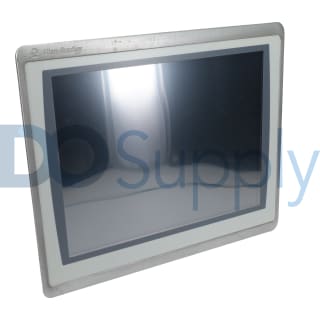

This operator terminal features a user-friendly touchscreen that supports up to 1 million actuation presses with an operational force of 100 g. It has ample system memory of 512 MB RAM and 512 MB of n

This touchscreen features an effective display area measuring 115 x 86 mm. With a maximum power consumption of 50 W and a weight of only 1.53 lbs, this model is versatile in industrial settings. The d
Two status indicators are located on the back of your PanelView Plus 7 terminal. The STS indicator is green and communicates that the terminal is powered on and operating. The ERR indicator is red and communicates hardware and or firmware faults. Upon starting your terminal, both indicators will initially flash, and the STS indicator will continue to flash as startup progresses. If the indicators do not turn on, always check the power cable. Once the startup has completed successfully, the STS indicator remains on. See the table below if the terminal stops during the startup process:
| ERR Indicator (Red) | STS Indicator (Green) | Meaning/Action |
| Possibly Recoverable Error | ||
| Blinking | Off | Firmware error. Redownload firmware. |
| Failed configuration. Restore factory default image. | ||
| Fatal Error | ||
| On | Blinking | Display hardware error. Replace the terminal. |
| On | Hardware error. Replace the terminal. | |
If your PanelView Plus 7 terminal fails to startup, always check for adequate power first. Verify the terminal's DC power requirements are being met. Startup failures can also be caused by incorrect wiring. Review the wire specifications for your terminal and verify that the DC power wiring is correct. Check the status indicators. See the table above. Ensure noting is touching the display during startup, as this may cause startup errors. Finally, ensure the progress indicator has not stalled. If it has stalled, reload the firmware or restore the terminal to factory default settings.
If your PanelView Plus 7 terminal is restarting for seemingly no reason, first check for incorrect wiring. Review the wire specifications for your terminal and verify the DC power wiring is correct. Intermittent terminal restarts can also be caused by the processor overheating. Check the processor temperature, the operating temperature, and review the System Event log for over-temperature conditions. Also, verify that there is adequate clearance around the terminal.
| Issue | Action |
| Temperatures Beyond Operating Range | Check the Monitors tab to review temperatures. Normal operation will not resume until the system has cooled to a normal operating temperature. |
| Low Display Brightness |
Adjust the Brightness Setting - Select Terminal Settings> Display> Display Intensity Use the arrows to change the intensity and press Enter to save |
| Low Screen Saver Brightness |
Adjust the Screen Saver Setting - Select Terminal Settings> Display> Screen Saver Use the arrows to adjust the intensity and press Enter to save |
| Issue | Action |
| Touchscreen Nonfunctional | Verify the touchscreen is not damaged. If it is, the terminal must be replaced |
| Incorrect Calibration | Recalibrate the touchscreen |
| Touching Multiple Input Points | The touchscreen does not support multiple operations simultaneously. Ensure you do not touch multiple input elements at once and that you do not rest your hand on the display. |
| Issue | Action |
| Cable Connections are Poor | Verify network connections and check the status indicators. The green indicator will turn on when a link has been established and the yellow indicator will blink when activity is detected. |
| Invalid Ethernet Connection | Ensure there is a good connection to the hub and uplink ports. Poor cable quality and crimping can inhibit the ethernet connection. |
|
Invalid IP Address |
Check the DHCP. If this is enabled the device will attempt to connect to a valid IP address within seconds of startup. If it fails to acquire and IP address, the TCP/IP protocol will assign 169.254.xxx.xxx. |
| Conflicting IP Addresses | Check the DHCP. If the DHCP is not enabled, verify the IP address specified does not conflict with another device on the network. |
Here at DO Supply, we offer repair services for your Allen-Bradley products, such as the Allen-Bradley PanelView Plus 7. Click here for more information or to request a quote