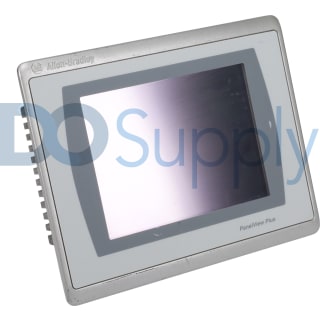
PanelView Plus 7 Status Indicators
Two status indicators are located on the back of your PanelView Plus 7 terminal. The STS indicator is green and communicates that the terminal is powered on and operating. The ERR indicator is red and communicates hardware and or firmware faults. Upon starting your terminal, both indicators will initially flash, and the STS indicator will continue to flash as startup progresses. If the indicators do not turn on, always check the power cable. Once the startup has completed successfully, the STS indicator remains on. See the table below if the terminal stops during the startup process:
Startup Issues - Indicator Status
| ERR Indicator (Red) |
STS Indicator (Green) |
Meaning/Action |
| Possibly Recoverable Error |
| Blinking |
Off |
Firmware error. Redownload firmware. |
| Failed configuration. Restore factory default image. |
| Fatal Error |
| On |
Blinking |
Display hardware error. Replace the terminal. |
| On |
Hardware error. Replace the terminal. |
PanelView Plus 7 Startup Errors
Startup Failed
If your PanelView Plus 7 terminal fails to startup, always check for adequate power first. Verify the terminal's DC power requirements are being met. Startup failures can also be caused by incorrect wiring. Review the wire specifications for your terminal and verify that the DC power wiring is correct. Check the status indicators. See the table above. Ensure noting is touching the display during startup, as this may cause startup errors. Finally, ensure the progress indicator has not stalled. If it has stalled, reload the firmware or restore the terminal to factory default settings.
Intermittent Terminal Restarts
If your PanelView Plus 7 terminal is restarting for seemingly no reason, first check for incorrect wiring. Review the wire specifications for your terminal and verify the DC power wiring is correct. Intermittent terminal restarts can also be caused by the processor overheating. Check the processor temperature, the operating temperature, and review the System Event log for over-temperature conditions. Also, verify that there is adequate clearance around the terminal.
PanelView Plus 7 Terminal Component Anomalies
Display Issues
| Issue |
Action |
| Temperatures Beyond Operating Range |
Check the Monitors tab to review temperatures. Normal operation will not resume until the system has cooled to a normal operating temperature. |
| Low Display Brightness |
Adjust the Brightness Setting -
Select Terminal Settings> Display> Display Intensity
Use the arrows to change the intensity and press Enter to save
|
| Low Screen Saver Brightness |
Adjust the Screen Saver Setting -
Select Terminal Settings> Display> Screen Saver
Use the arrows to adjust the intensity and press Enter to save
|
Touchscreen Issues
| Issue |
Action |
| Touchscreen Nonfunctional |
Verify the touchscreen is not damaged. If it is, the terminal must be replaced |
| Incorrect Calibration |
Recalibrate the touchscreen |
| Touching Multiple Input Points |
The touchscreen does not support multiple operations simultaneously. Ensure you do not touch multiple input elements at once and that you do not rest your hand on the display. |
Ethernet Issues
| Issue |
Action |
| Cable Connections are Poor |
Verify network connections and check the status indicators. The green indicator will turn on when a link has been established and the yellow indicator will blink when activity is detected. |
| Invalid Ethernet Connection |
Ensure there is a good connection to the hub and uplink ports. Poor cable quality and crimping can inhibit the ethernet connection. |
|
Invalid IP Address
|
Check the DHCP. If this is enabled the device will attempt to connect to a valid IP address within seconds of startup. If it fails to acquire and IP address, the TCP/IP protocol will assign 169.254.xxx.xxx. |
| Conflicting IP Addresses |
Check the DHCP. If the DHCP is not enabled, verify the IP address specified does not conflict with another device on the network. |
Repair Your PanelView Plus 7
Here at DO Supply, we offer repair services for your Allen-Bradley products, such as the Allen-Bradley PanelView Plus 7. Click here for more information or to request a quote