Common PanelView Mistakes That Slow Operators Down
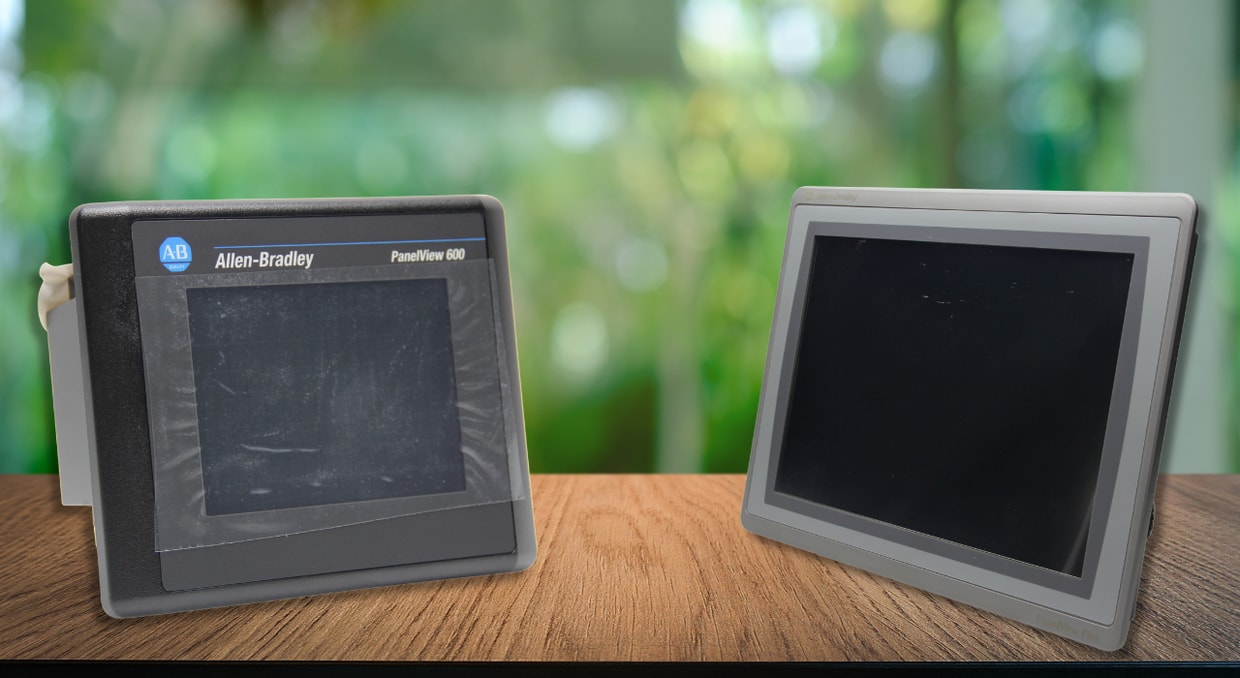
The Allen-Bradley PanelView series plays a key role in modern industrial control systems, facilitating essential communication between machine processes and human operators. Most PanelView technical failures are not due to hardware issues, but rather they arise from design flaws, configuration errors, firmware corruption, and poor network communication links with Programmable Logic Controllers (PLCs). These malfunctions often result in decreased operator efficiency, potential safety risks, and significant system downtime. This article examines common PanelView mistakes that reduce operator efficiency and provides actionable solutions based on Rockwell Automation’s best practices.
Communication Configuration Errors
Communication between the PanelView and the PLC is the backbone of any HMI application. Misconfigurations here are among the most common causes of sluggish screen performance.
Scattered Tag Addressing
Use of non-contiguous, scattered tag addressing between the target controller and PanelView HMI.
What happens: When HMI address tags are scattered all over the PLC’s memory map, the control system wastes a considerable amount of time and resources on unnecessary data transfers. Each time it detects an HMI tag, it has to transmit a message, consuming both network bandwidth and the controller’s time. This degrades network throughput, significantly compromising controller performance and causing slow HMI screen updates.
Example Scenario: An SLC 5/05 system communicating with a PanelView over Ethernet experienced noticeably slow screen updates. Investigation revealed that scattered HMI tag addressing across the PLC memory map was forcing excessive individual data requests, significantly increasing communication scan time.
Solution: Consolidate all the HMI data into compact, contiguous data table sections. For ControlLogix systems, create UDTs or arrays that consolidate all the PanelView HMI-facing tags. This way, the PanelView can read a data block simultaneously rather than making numerous individual requests.
Incorrect Communication Rate Configuration
The rate at which a PanelView polls for updated data from the controller depends on several settings, including the communication packet interval and the per-display tag update rate. The tag update rate, which typically defaults to 1 second, is often the primary driver of perceived screen responsiveness. When update rates are configured too aggressively, they can flood the network with excessive traffic. If left at defaults or set too conservatively, operators encounter delays due to slow HMI screen refresh rates.
The Trap: Many system integrators rely on default communication settings without considering the specific needs of the intended application. This results in significant delays in real-time trending or high-speed positioning. On the other hand, setting aggressive update rates for static status indicators can waste resources that could be allocated to more critical displays.
Solution:
- For PanelView HMIs used to control industrial machines, use an RPI of 50-100ms
- For status monitoring screens, utilize an RPI of 250-500ms
- Use an RPI of 1000ms or more for low-usage PanelView displays or historical data
- Use display tag groups that are configured to trigger whenever their related screen is visible. This approach minimizes PLC communication load and unnecessary background traffic, thereby improving control system performance.
Display Design Anti-Patterns
How a PanelView display is designed directly impacts how quickly it responds. A few common design habits can quietly drag down performance over time.
Excessive Screen Objects
Each element displayed on a PanelView screen uses processing power and memory. PanelView terminals rendering hundreds of objects simultaneously, especially those featuring complex animations or extensive dynamic visibility expressions, can overload the processor. This often results in display lag. If you would like to learn more about good HMI design, we have a blog here for you!
Indicators: Choppy animations, unresponsive touch input, and slow screen changes.
What’s Happening: The PanelView terminal must manage, animate, and render events for each object on the screen. Objects with extensive visibility expressions are especially costly (higher processing costs) because they require continuous verification of tag values to determine their display condition.
Best Practices:
- Limit the number of active screen objects to 75-100 maximum
- Use global object definitions and parameter files to reuse display elements instead of duplicating them.
- Consider whether complex animations are truly essential. Operators emphasize responsiveness over visual effects.
Memory-Leaking Extended Tag Properties
PanelView Plus 7 and PanelView Plus 6 terminals store extensive tag property values for each runtime language in RAM. A design constraint clears the cache for unused languages after 8 hours.
Why This Matters: Applications with multi-language support often experience performance degradation over time as the display cache fills up, leading to slowdowns or total unresponsiveness until the eight-hour cache purge occurs.
Solution:
- Try to reduce the use of tag properties
- If you require multiple PanelView programming languages, only change languages at startup and not during runtime
- Observe memory consumption during long runtime tests to identify any leak patterns
Misconfigured Alarms and Acknowledgment Status
Alarm configuration is often treated as an afterthought, but poorly implemented alarm handling can confuse operators and mask real equipment faults.
PLC-Based Alarms Reset Through HMI
The mistake is permitting the PanelView to reset PLC alarms or directly acknowledge them without operators verifying that the underlying PLC fault condition has been resolved.
The Consequence: Operators might dismiss an alarm while the equipment remains faulty. If the PLC continues to detect faulty or unsafe states, it causes immediate and repetitive alarm recurrence on the PanelView. Alarm persistence can lead to operator confusion, equipment damage, or safety risks.
Correct Alarm Configurations:
- All alarm logic and states should be managed by the PLC, with the PanelView functioning as the HMI for displaying active PLC alarms and inputting operator acknowledgment
- The acknowledgment button must trigger a PLC tag that the controller verifies against the fault condition
- Only after the PLC confirms the fault is resolved should the HMI restart the alarm indication
Excessive Alarm History Buffering
Storing event logs and alarms uses processing resources and memory. Configuring alarm history and event logs to be stored indefinitely on the PanelView usually degrades performance due to high RAM usage.
Best Practices:
- Restrict alarm history storage to 500-1000 entries
- Automatically erase alarms older than 30 days
- For long-term compliance requirements, send alarms to a historian instead of depending on the PanelView storage
Network Infrastructure Oversights
Even a well-designed PanelView application can underperform if the underlying network infrastructure introduces latency or reliability issues.
Daisy-Chained Ethernet Topologies
PanelView terminals can be installed using daisy-chained Ethernet links, with PanelView 700 models having built-in Ethernet switches with catalog numbers ending “22” for the PanelView Plus 7 Standard, and the PanelView Plus 7 Performance line.
The Performance Impact: Each daisy-chained PanelView terminal increases the cumulative latency per hop, creating a single point of failure. A malfunctioning PanelView terminal can cause retries and collisions that degrade performance across the entire daisy chain topology.
Technical Requirement: Utilize a star topology featuring managed industrial Ethernet switches. For existing Daisy Chain network installations, ensure that the switch ports are configured for duplex and optimal port speeds. Mismatched configurations can lead to intermittent communication delays.
Undiagnosed Ethernet/IP Network Congestion
EtherNet/IP networks that drive communications and handle PanelView traffic, alongside I/O control, require dedicated bandwidth management to prevent sporadic timeouts or latency.
Diagnostic Approach:
- Use the PanelView’s built-in diagnostic tools to monitor the status of the EtherNet/IP networks
- Examine for increasing error counters, especially the ones indicating CIP connection timeouts or retries
- Ensure that switches are not dropping packets because of buffer overflows
IP Address Conflicts: IP address conflicts often arise when static IPs are assigned outside a server’s DHCP address scope, especially on networks with DHCP disabled. While the PanelView might remain operational, IP address conflicts can lead to erratic network performance. This can be resolved by manually readdressing the static IP.
Memory and Runtime Mismanagement
How the PanelView application is built and maintained during development directly affects runtime performance. File size and content management are often overlooked until problems appear in the field.
Overloaded MER Runtime Files
PanelView applications are organized into MER’s files. As these files grow excessively large, runtime performance declines, load times increase, and screen navigation slows.
Common Problems:
- Excessive external referencing of internal graphics stored in the runtime files
- Overly detailed trends and too many alarm configurations
- Failure to remove unused screens or objects during development
- Importing large PNG/BMP images rather than scaling or utilizing optimized formats like PNG8 or JPEG
Solutions and Best Practices:
- Monitor the MER’s file size throughout development. For PanelView Plus 7 terminals, target the runtime files to under 50MB.
- Optimize the size of images before importing them
- For color PanelView terminals, reduce the color depth of imported images to 8-bit or less
Ignoring Runtime Cache Behavior
PanelView Plus terminals have an eight-hour reset feature. This indicates that after eight hours, the terminal deletes some cached information. The cached data includes elements such as engineering units, maximum and minimum ranges, and scaling factors for each language the applications support.
Operational impact: In 24/7 environments, the eight-hour cache system reset can cause issues, such as a recurring slowdown at the eight-hour mark. Although the PanelView system self-corrects after clearing the cache, the brief downtime disrupts the workflow. This makes it difficult for maintenance teams to understand what is going on because the issue does not always occur when they are testing.
Mitigation Strategies:
- To prevent these problems, it is advisable to schedule an automatic reset of the PanelView system when the operators are switching shifts. This way, the eight-hour mark is never attained.
- For applications requiring continuous operation, the cache should be updated by temporarily changing the runtime languages during scheduled downtime.
- Perform engineering unit conversions and scaling tasks directly in the PLC logic rather than in the HMI to minimize PanelView processor load
- Use of extended tag properties for better PLC-PanelView integration, as they enable direct access to engineering units and controller-side descriptions
Hardware Neglect
Software and network configurations get the most attention, but physical installation conditions can be just as important to long-term PanelView performance.
Inadequate Thermal Management
The PanelView terminals can operate properly only within certain temperature ranges. If placed inside a sealed box with no ventilation, they can overheat.
If the PanelView terminal overheats, it can cause certain problems. For example, the display might get dim, while the touchscreen may not. The processor might also become slower. Occasionally, the PanelView terminal might even reboot itself.
Environmental Protection Checklist:
- Ensure the PanelView enclosure is kept cool and has adequate ventilation
- Use a sun shield when in direct sunlight or outdoors
- If the PanelView is installed in direct sunlight or outdoors, use a sun shield to reduce heat buildup
- Avoid mounting the PanelView terminal on top of devices/equipment that generate heat
- Consider using a unique PanelView enclosure that can keep it dry and cool
Mistake: Power Supply Instability
PanelView terminals can occasionally malfunction due to power supply instability. In many cases, the root cause is not the terminal itself but the power supply delivering inconsistent voltage.
To avoid these problems, it is ideal to:
- Use an independent power supply exclusively for the PanelView terminal
- Monitor the voltage at the PanelView terminal and not just at the power supply
- Measure the voltage when the system is actively running, not when it is idle
Touchscreen Calibration and Interface Design
The touchscreen is the operator’s primary point of interaction with the control system. When it doesn’t respond accurately, it can mimic the symptoms of a slow or unresponsive system.
Ignoring Calibration Drift
The resistive touchscreens available on various PanelView Plus models require regular calibration to maintain accuracy. The touchscreens may not function properly if they are not calibrated. This can occur because of physical pressure, normal mechanical wear and tear, or environmental temperature changes. The uncalibrated touchscreens often trigger incorrect, unintentional operator actions. They also mimic slow system performance.
Corrective Measures
- After any updates, calibrate the touchscreen
- As part of regular maintenance, calibrate the touchscreen once a year
- Train the operators to identify the symptoms of incorrectly calibrated PanelView touchscreens so that they can report the issue immediately
What This Means for Operators: When buttons fail to respond properly or the wrong button is activated, it can be frustrating and lead to errors.
What to Do:
- After updating the firmware, calibrate the touchscreen
- Incorporate calibration as part of the maintenance plan
- Instruct operators to recognize when the touchscreen requires calibration versus when the system is actually sluggish
Conclusion
Often, when PanelView systems are slow, it is due to mistakes made during design or setup, not a hardware issue. By avoiding these mistakes, engineers, system integrators, and operators can significantly enhance the system’s responsiveness and reliability. The basic idea is to simplify screen designs, manage network communication loads, optimize tag update rates, and maintain recommended environmental conditions to ensure everything functions smoothly together. When these key design and operational principles are addressed, the PanelView systems can function as intended and help operators perform their jobs efficiently.
When these key design and operational principles are addressed, PanelView systems can function as intended and help operators perform their jobs efficiently. If you need a replacement PanelView terminal, communication module, or any other Allen-Bradley automation part, we at DO Supply carry a wide selection of in-stock components backed by our 2-year warranty. Give us a call today or shoot us an email and see what we can DO for you.
DO Supply Inc. makes no representations as to the completeness, validity, correctness, suitability, or accuracy of any information on this website and will not be liable for any delays, omissions, or errors in this information or any losses, injuries, or damages arising from its display or use. All the information on this website is provided on an "as-is" basis. It is the reader's responsibility to verify their own facts.