PanelView Keypad vs Touchscreen Models: Real Tradeoffs
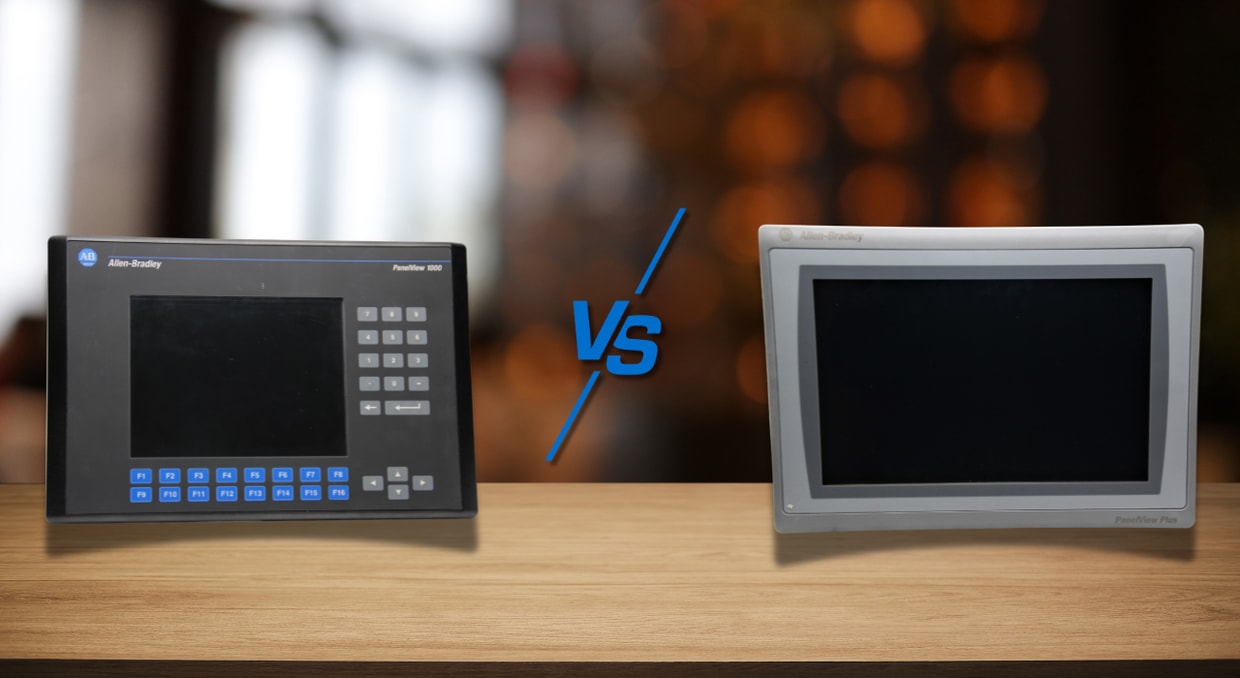
Choosing the right PanelView HMI is no easy task; it’s not just about the screen size or the communication protocol. A major choice is whether a PanelView terminal will be equipped with a keypad, a touchscreen, or both. PanelView models with a keypad enable a variety of functions under harsh operating conditions that touchscreen interfaces cannot. By understanding the true costs and benefits of these input methods, engineers, operators, and maintenance personnel can select the most appropriate PanelView solution for their application.
Selecting the Input Options for the PanelView.
Modern PanelView families vary widely in the input options available. PanelView 5310 and 5510 terminals use touchscreen input, while PanelView 800 and legacy PanelView Plus 6 models include keypad, touchscreen, or keypad/touchscreen options depending on the model. PanelView Plus 7 Standard terminals are primarily touchscreen-based. The choice of interface affects the operator’s efficiency, navigation speed, maintenance requirements, system reliability, and total system cost.
Why are Keypad Models Still Preferred?
Although touchscreen HMIs have gained popularity, keypad-based PanelView terminals remain useful in industrial settings where operators frequently wear gloves or have dirty or wet hands.
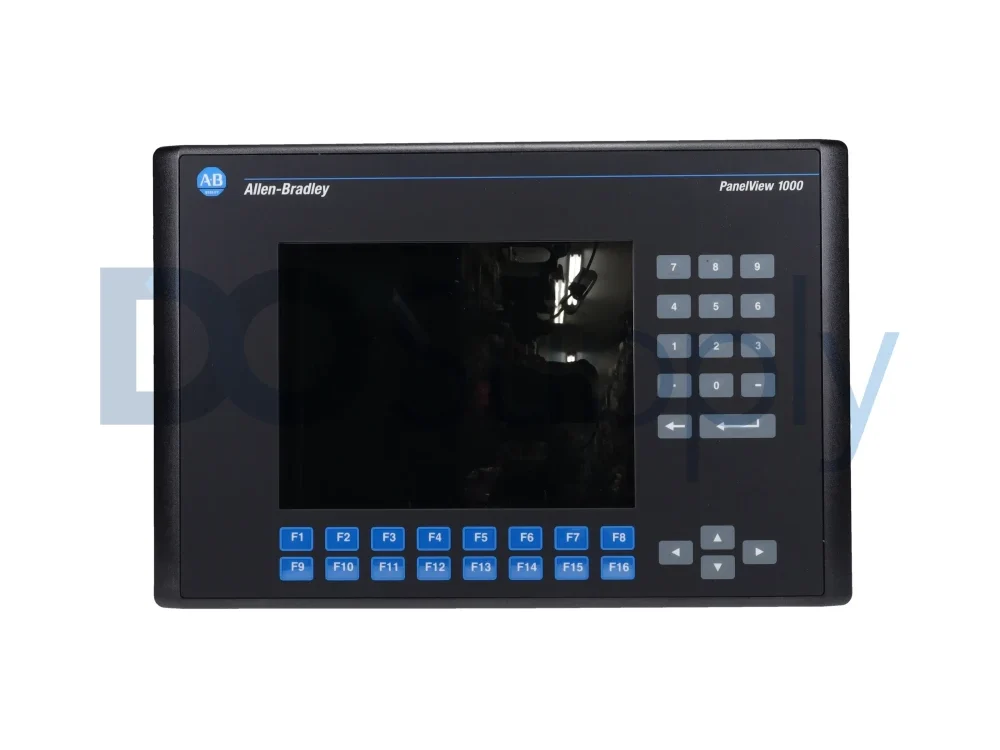
Physical keys give instant ‘feel’ feedback. When the operator presses a button, they feel it without looking at the display. This is especially crucial when machines are in repetitive modes, motor jogging, directional controls, coil car motion, and start/stop operations.
For many machine functions, operators still want to use physical buttons for the machine’s responses because they require no separation between action and response. When the same operator repeatedly performs the same job during a shift, a keypad-based PanelView can help prevent frustration and increase confidence.
Keypad models also make number data entry easier for repetitive tasks. It’s sometimes quicker and more accurate to type in setpoints or process values with physical keys than to use an on-screen keyboard. This can enhance productivity and minimize input errors for operators who are likely to enter production values in the future.
Another benefit of keypad-based PanelView terminals is their compatibility with gloves. Physical keys are not touch-sensitive and can be used through gloves or in contaminated conditions where hands may be dirty, wet, gloved, or covered in contaminants.
Limitations of the Keypad models
Not all keypad-based PanelView terminals offer the same layout, key count, or input arrangement. Although keypad interfaces offer features that make them more convenient to operate, they also have limitations.
Physical keys take up valuable front panel space. Therefore, keypad-based PanelView terminals typically offer lower screen density than touch-screen terminals. Part of the bezel area will be used for buttons, leaving less screen room for the graphics, trends, alarms, and process information.
It can also make navigation less efficient. To navigate between screens and menu levels, operators will need to traverse several levels because the interface does not dynamically create or move buttons as easily as a touchscreen system.
Mechanical wear is also a factor. Dirt, dust, and debris can build up under membrane keys or mechanical buttons over time. Individual keys can stick, lose responsiveness, or become harder to actuate over time. While replacing a keypad assembly may be cheaper than replacing a touchscreen assembly, keypad wear is also a maintenance consideration and must be taken into account.
Popularity of the Touchscreen PanelView Models
The introduction of touchscreen technology revolutionized the capabilities of modern PanelViews. The entire display is now used for process visualization and operator interaction, without occupying any hardware space.
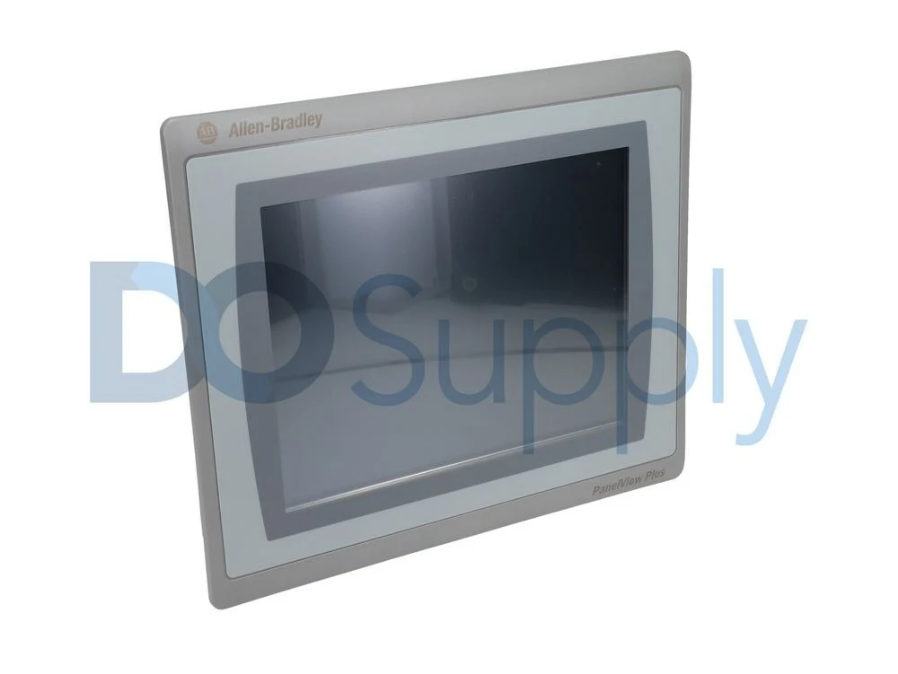
This enables a much greater density of screens. Engineers can design detailed process graphics, alarm summaries, trend displays, equipment faceplates, and navigation menus without taking up any extra space in their cabinets.
Many PanelView platforms have advanced graphing capabilities. Scalable vector graphics, property binding, automatic rescaling, alignment guides, events and commands, high-speed on-screen buttons, predefined controller and network status screens, and smart runtime error notifications are included in PanelView 5510 and PanelView 5310. These features provide for a highly responsive and visually rich operator interface.
Another great advantage of touchscreen systems is their flexibility. The functionality of on-screen buttons can alter depending on the operating conditions, user permissions, machine states, authentication levels, etc. Use one screen area for multiple purposes without extra hardware.
Dynamic graphics, customizable reusable objects, faceplates, animation, display reuse with parameters, display import/export functions, and multi-language operation with language switching are also supported on Touchscreen PanelView terminals. These features enable a PanelView terminal to handle many operational requirements and reduce panel space.
The Disadvantages of the Touchscreen PanelView Models
While touchscreen technology provides significant advantages, it also has drawbacks evident in industrial settings.
A very common complaint is that they lose the sense of touch. When a virtual button is pressed, there is no feedback for the operator, unlike a cellphone, which may vibrate when touched. Because of this, some users prefer physical buttons for jogging and frequent moves.
Perceived responsiveness can also be affected by communication architecture. The HMI system with Ethernet uses the Requested Packet Interval (RPI) for communication. For most applications, 10 milliseconds is sufficient, but sometimes operators may perceive a difference between a touchscreen command and a hardwired pushbutton action.
Touchscreens may also get damaged or physically worn down. Over time, scratches or worn overlays (or depression marks) can develop on a frequently used screen location. If it’s quite worn, the affected portion of the touchscreen can be insufficient and should be replaced, not just the button.
This can substantially increase maintenance costs. If the touchscreen or hardware is damaged or faulty, it may need to be replaced, and the cost may be high. There are certain failures mentioned by some users, such as the “Fatal 3A” failure, in which the Touch Screen stops working, and the cost of such a repair is higher than replacing the individual keypad. Touchscreen systems in extreme environments can also be more difficult when the operator is wearing heavy gloves or has grease, dirt, or moisture on their hands.
The Case for Combo PanelView Models
Combination PanelView terminals offer the flexibility of touchscreens and the reliability of physical keypads. The touchscreen provides navigation, alarm and trend functions, diagnostics and process visualization, while physical keys are used for critical actions and data entry.
This mixed model is suitable for processes that require both detailed process monitoring and frequent machine control. The disadvantages include increased costs, greater panel space usage, and maintenance issues for both interface types.
Industry Best Practices
Many facilities employ a combination of control strategies:
- Tactile feedback (physical keys) for start, stop, jog, and directional controls where tactile feedback is important.
- Advanced touchscreen setpoint change, alarm control, diagnostics, trends, reports, and complex navigation.
For this reason, touchscreen HMIs are not always used in place of all pushbuttons, selector switches, and emergency stops.
Choosing the Right PanelView Solution
- Keypad PanelView: Best suited for repetitive machine control, gloved operation, and applications where tactile feedback matters.
- Touchscreen PanelView: Ideal for applications where data is an important element and which must display graphics, alarms, trends, and be navigated flexibly.
- Combination PanelView: This provides the advantages of both technologies and thus is more expensive.
The best PanelView solution is the one that meets the operator’s actual machine usage habits while remaining user-friendly, easy to maintain, and easy to operate. If you would like to learn more about PanelViews in harsh environments, we have an article here that you might enjoy.
If your PanelView terminal is worn out, hard to operate, or no longer fits the way your operators use the machine, we at DO Supply can help. We offer Allen-Bradley PanelView HMIs, replacement parts, and repair services to help keep your equipment running with less downtime. Contact us today to find the right PanelView solution for your application.
DO Supply Inc. makes no representations as to the completeness, validity, correctness, suitability, or accuracy of any information on this website and will not be liable for any delays, omissions, or errors in this information or any losses, injuries, or damages arising from its display or use. All the information on this website is provided on an "as-is" basis. It is the reader's responsibility to verify their own facts.